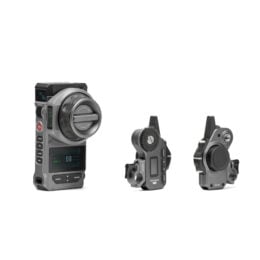
Update the FIZ Unit Firmware
Connect to Computer: Connect the FIZ unit to your computer using a USB-A to USB-C cable.
Select Update: On the FIZ unit’s pop-up menu, select the update option.
Transfer File: On your computer, navigate to the Tilta drive, open the firmware folder, and drag the main update file onto the drive.
Disconnect and Start Update: Disconnect the FIZ from the computer. Navigate to Menu > System > Firmware Update.
Confirm and Finish: Confirm when the file is detected to begin loading. Confirm again to start the update process. The FIZ unit will power down when complete. You can check the new firmware version in System > Information.
Update the Motor Firmware
Transfer File to FIZ: Use a USB-A to USB-C cable to connect the FIZ to your computer. Select update on the pop-up, open the Tilta drive, and drag the motor update file onto the drive.
Enter Upgrade Mode: On the motor, hold the down and up arrows before powering the motor on to enter upgrade mode.
Connect FIZ to Motor: Eject the FIZ drive and connect the FIZ unit to the motor using a 7-pin to 7-pin cable.
Start Update: On the FIZ, go to Menu > System > Firmware Update. When the motor file is detected, press confirm to start the update. The motor will cycle power when the update is complete.
Update the Hand Grip Firmware
Connect to Computer: Use a USB-A to USB-C cable to connect your computer to the hand grip via the USB-C port on the top.
Enter Upgrade Mode: Hold the A/B point button and the record button simultaneously to enter upgrade mode.
Transfer File: A nameless drive should appear on your desktop. Drag the handle update file directly into this drive.
Finish: The handle will automatically update, disconnect, and power off. You can power it back on and check the update success in Menu > Information.
Watch the Full Setup Guide
The full setup guide video goes over the process starting at 56:35. Press play below to start at the timestamp where it starts.

 (4 votes)
 Loading...